WCAG 2.0 AA
AChecker Basic
99a month
The AODA standard. AChecker reads the HTML of every page, and Tingtun checks every PDF they link to.
- Every page checked by AChecker
- Every linked PDF checked by Tingtun
- Pass, fail and broken-link counts
Accessibility monitoring for WCAG 2.0 and 2.1 AA
ACHECKS crawls up to 1,000 pages of your site and the PDFs they link to, checks every one with AChecker, Lighthouse and Tingtun, and keeps the results in one dashboard your team can work from. Nothing to install.















How it works
Add a domain and ACHECKS does the rest. Nothing to install on your site and no scan to remember.
Choose a plan, tell us the domain, and who should get the reports you ask for.
We follow your links to up to 1,000 pages and the PDFs they link to, then check each one with AChecker, Lighthouse and Tingtun.
Every domain, every page and every problem, with the code behind it and how to fix it.
Fixes show up as passes, and new problems are caught the week they appear.
Inside ACHECKS
These are the real screens of the ACHECKS portal, filled with a sample college's results. Nothing here is a mock-up.
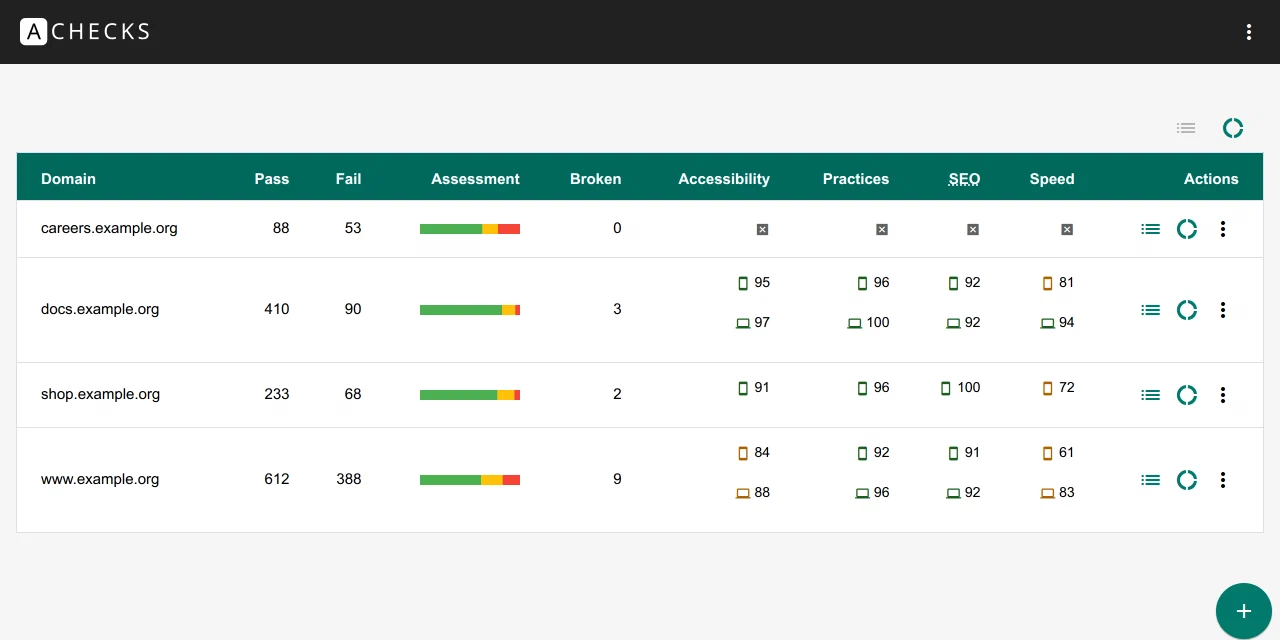
The first screen after you sign in. One row for each domain you monitor, from the latest weekly scan.
Pages with no known problems, and pages with at least one.
Every page sorted green, amber or red by how many problems it has.
Average accessibility, best practice, SEO and speed scores, on mobile, desktop or both.
Each domain has its own plan, so you can mix plans across your sites.
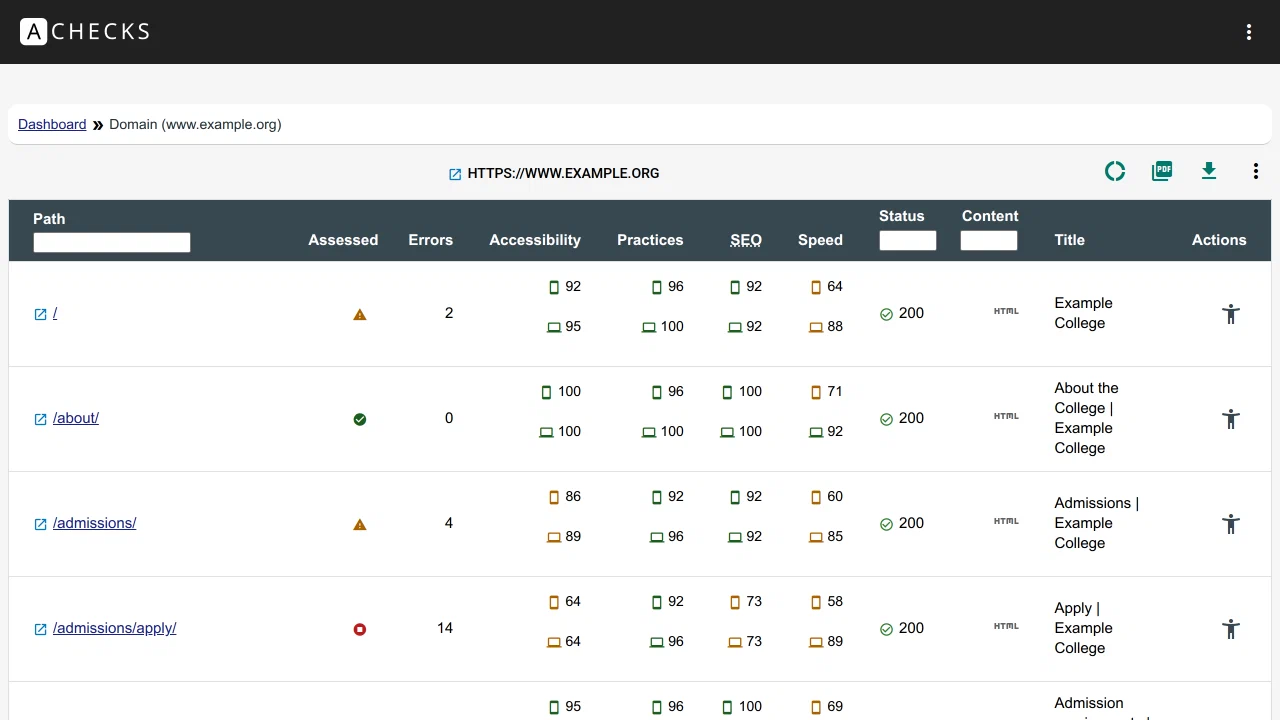
Open a domain to see each page and PDF the crawler found, up to 1,000, twenty to a screen.
Narrow the list by path, HTTP status or content type.
A tick, a warning or a stop sign for each page, and its error count.
Lighthouse results for every page, not only the averages.
Ask for a PDF report or a CSV export, summary or detailed, and it arrives by email.
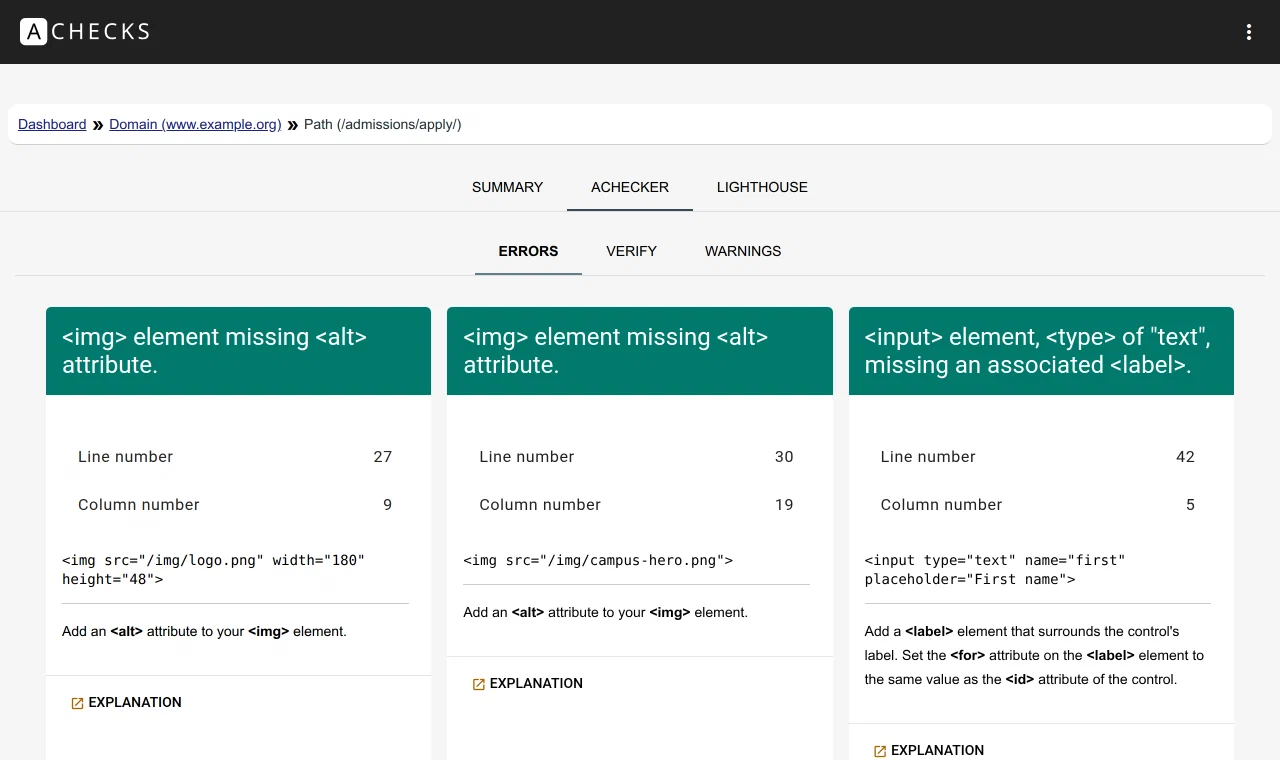
Open any page for its AChecker results. Each problem comes with its line, its code and how to fix it.
A summary with a screenshot, the AChecker results, and the Lighthouse report.
Known problems first. Likely and potential problems wait for a person to decide.
The check that failed, with its line and column.
What the check means and how to pass it.
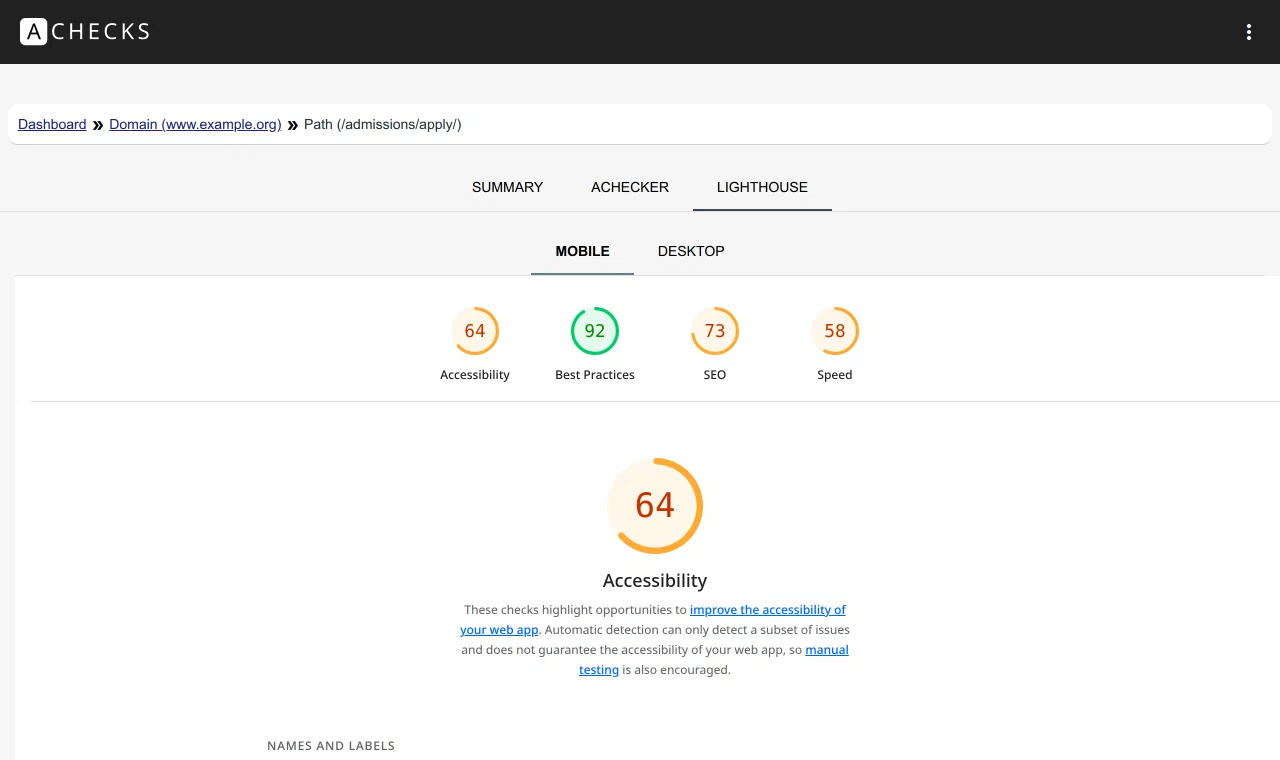
On Lighthouse plans, every page is rendered in Chrome and keeps its complete Lighthouse report.
Lighthouse Full keeps a report for each layout. Lighthouse Single keeps the one you choose.
Accessibility, best practices, SEO and speed, for this page.
Grouped and expandable, with the elements that failed.
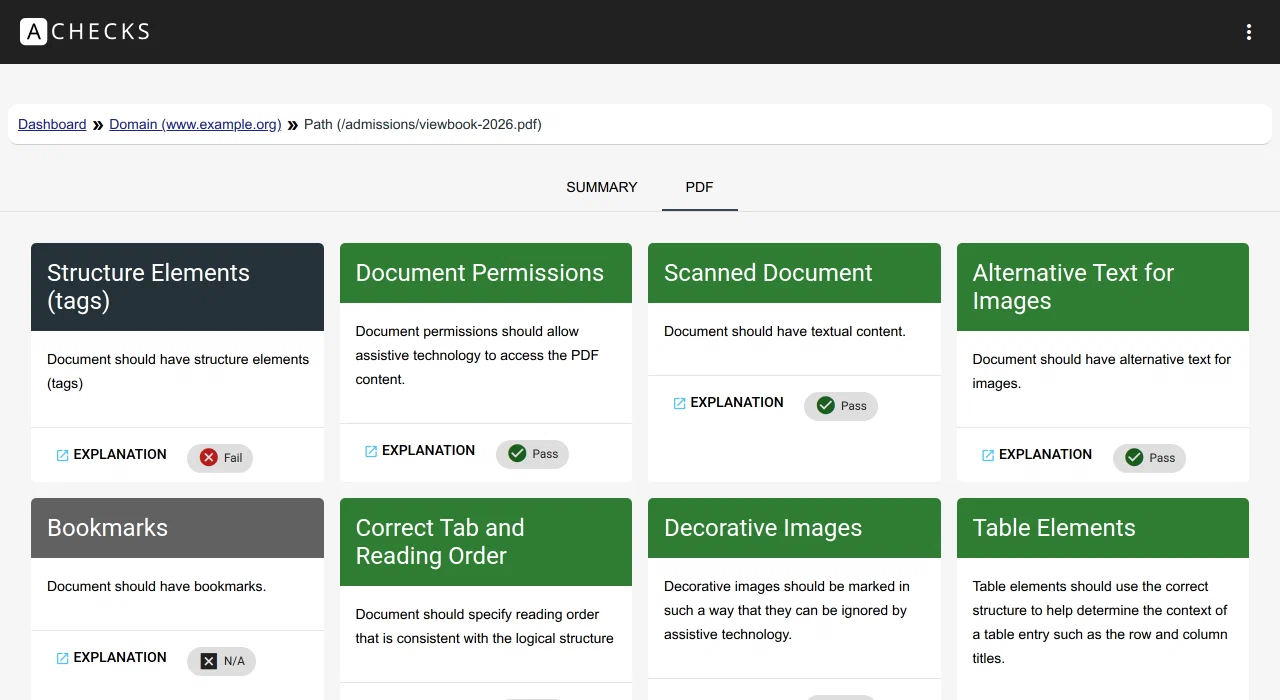
Every PDF the crawler finds is checked with Tingtun, against the PDF techniques in WCAG.
Tags, permissions, alternative text, reading order, bookmarks and more.
With a link to the WCAG technique behind each test.
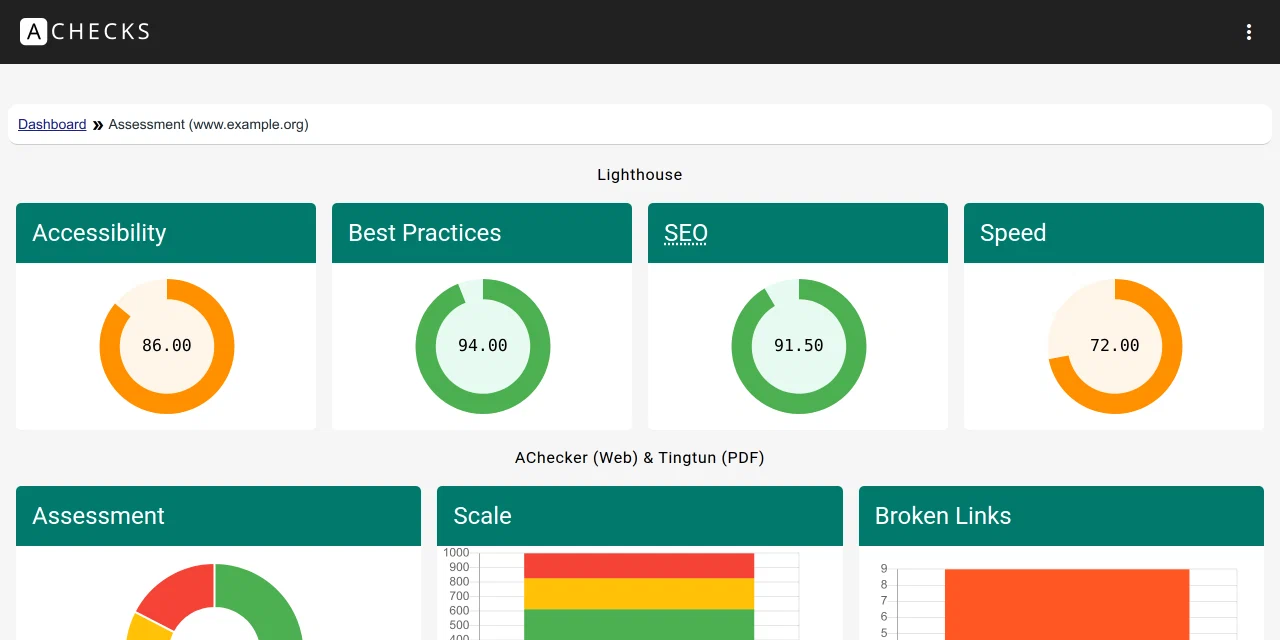
The assessment view sums up a domain, or all of them, for the people who report on accessibility.
Accessibility, best practices, SEO and speed across the domain.
How many pages and PDFs are good, okay or bad, and how many links are broken.
Sample data for a fictional college at example.org. Your account shows your own domains.
Plans
One plan covers one domain. Every plan rescans up to 1,000 pages a week and checks the PDFs they link to. Lighthouse plans add Chrome-rendered scores for every page.
WCAG 2.0 AA
99a month
The AODA standard. AChecker reads the HTML of every page, and Tingtun checks every PDF they link to.
WCAG 2.1 AA
199a month
Everything in AChecker Basic, plus Lighthouse on your mobile or your desktop layout, rendered in Chrome.
Most complete
WCAG 2.1 AA
249a month
Everything in AChecker Basic, plus Lighthouse on both your mobile and your desktop layouts.
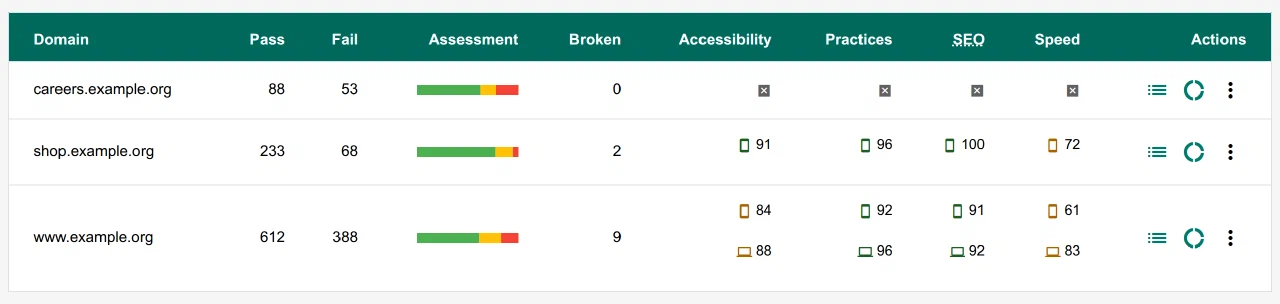
Three sample domains, one on each plan, in the real dashboard.
AChecker and PDF results. The Lighthouse columns stay empty.
Adds Lighthouse scores for one layout, here mobile.
Scores for both layouts, mobile and desktop, on every page.
Prices are monthly, before sales tax where it applies. Cancel any time.
Compare plans and add-onsOntario
Ontario's accessibility compliance report asks whether your public websites conform to WCAG 2.0 Level AA. ACHECKS gives you page-by-page evidence for your answer, and a list of what to fix before you file.
Do all your organization's internet websites conform to the World Wide Web Consortium Web Content Accessibility Guidelines 2.0 Level AA, except for live captions and pre-recorded audio descriptions?
Free
Check one page, one PDF or one pair of colours. No account needed.
Check a web page against WCAG 2.0 or 2.1, or a PDF with Tingtun.
Test text contrast with APCA, with the WCAG 2 ratio beside it.
The original open-source checker from the Inclusive Design Research Centre.
Test a text and background colour against AA and AAA.
Upload a PDF or paste its address to check it.
How to check text on a gradient background, stop by stop.
Also from ACHECKS
Results inside WordPress, your own brand on the portal, and a fix for the PDFs InDesign leaves behind.
Install Accessibility Compliance by ACHECKS from WordPress.org, and your administrators see every scan in the dashboard.
Agencies run ACHECKS for their clients under their own name, with their domain, their logo, unlimited clients and managed access.
Upload a PDF exported from InDesign. The PDF/UA post-processor repairs the tag structure InDesign leaves behind, and shows each fix before it applies.
Changes to WCAG and accessibility law, new free tools and practical guides, from the people who build ACHECKS.
Choose a plan, add your site, and your first results are in the dashboard within a day. Cancel any time.
Add a domain to your account and choose its plan. Its first results are in your dashboard within a day.